

Members & roles
What this is
Section titled “What this is”Three roles, checked in the service layer on every request - never only hidden in the dashboard’s UI, so the same rule holds whether the call comes from a browser, the API or an MCP agent.
| Role | Can |
|---|---|
| Owner | Everything an admin can, plus changing roles: making a member an admin or another owner, and demoting another owner as long as one owner remains. A workspace can have several owners; an owner cannot change their own role. |
| Admin | Invite people as admin or member and cancel invitations, remove members and admins, connect and disconnect accounts, manage API keys and change workspace settings. Cannot change anyone’s role. |
| Member | Use the product day to day - compose, schedule, browse media - without member, API key or account-connection management. |
There is no ownership transfer and no “delete workspace” button. To hand a workspace over, make the new person an owner; a workspace is deleted only when its last member deletes their account.
Members available per plan: 1 (Free, Creator), 3 (Studio), 10 (Agency) - see Plans & limits.
Invite someone
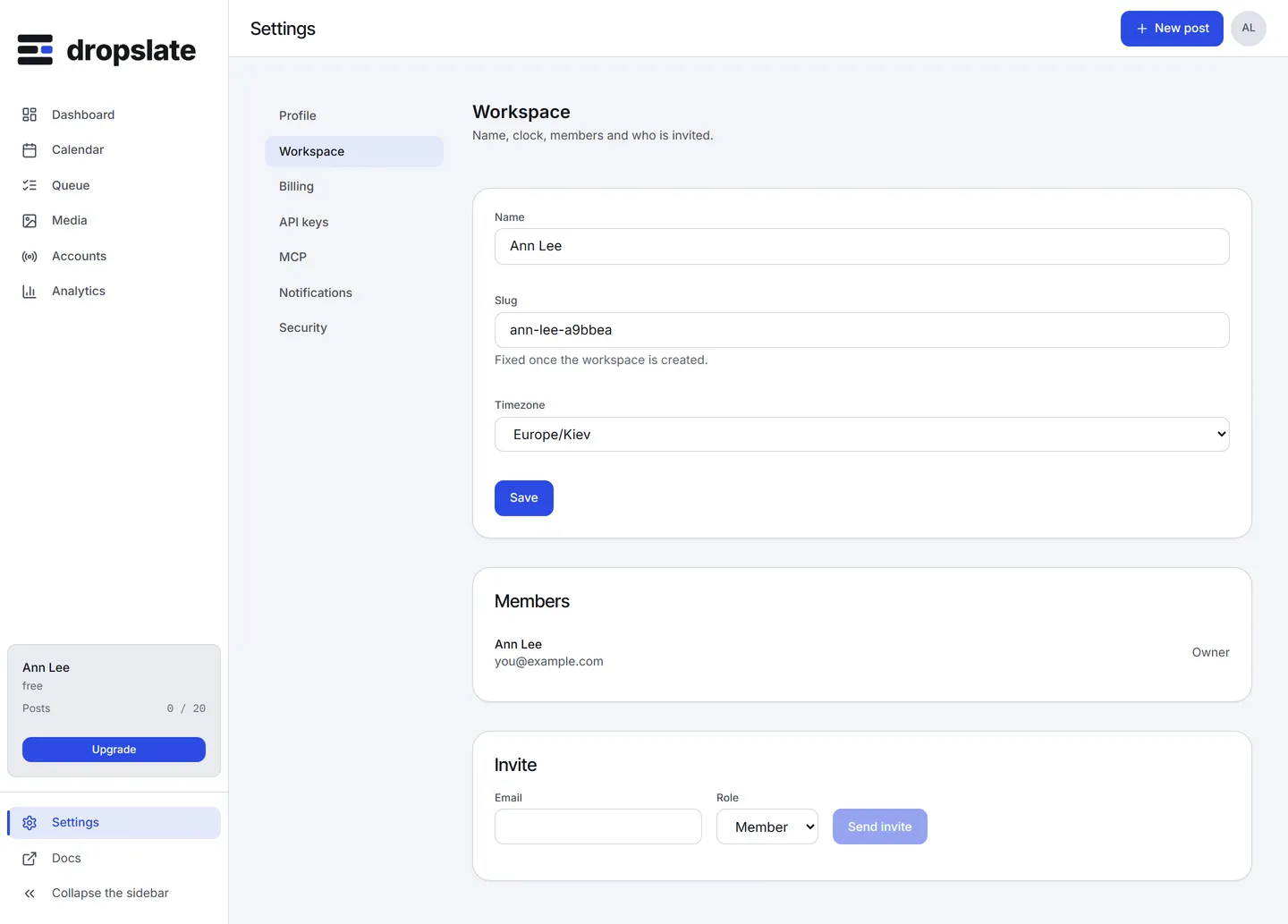
Section titled “Invite someone”Settings → Workspace → Members: enter their email, pick admin or member, Invite. They receive an invitation link and join when they open it and accept; an invitation can be cancelled before that. An invitation carries the authority of the person who sent it: if that person can no longer invite, their pending invitations stop working.
The link opens a screen that says who invited them, to which workspace and with what role before they choose Join workspace (GET /v1/invites/{id}/preview, for a signed-in session). It answers only the address the invitation was sent to, while the invitation is live and its sender may still invite; anything else is the same 404 as an invitation that never existed. Joining does not move them: the dashboard stays in the workspace they were in, and the new one is in the profile menu.
Change a role
Section titled “Change a role”Settings → Workspace → Members, change the role next to their name. Only an owner can do this. An owner cannot change their own role, and the last owner cannot be demoted - make someone else an owner first.
What no one can do through MCP
Section titled “What no one can do through MCP”An AI agent connected through MCP cannot invite, remove or change a member’s role, manage billing, or connect/disconnect an account, regardless of whose credential it uses - see MCP → Safety rules. Those actions exist only in the dashboard, behind a signed-in session.
Common errors
Section titled “Common errors”| Error | Cause | Fix |
|---|---|---|
forbidden |
A member tried an owner- or admin-only action, or an admin tried to change a role. | Ask an owner or admin to do it, or to change your role. |
last_owner |
Demoting the only owner would leave the workspace without one. | Make someone else an owner first. |
own_role |
An owner tried to change their own role. | Another owner changes it. |
owner_stays |
Removing an owner. | Another owner demotes them first; then they can be removed. |
quota_exceeded (members) |
The plan’s member limit is reached. | Remove an inactive member; plans with more members are not on sale yet - see Plans & limits. |